Skip to main content

- 91”Œșœpage
- Study
- Get started
- Change known password
Change your known password
If you know your 91”Œșœ account password but need to change it, follow the steps on this page.
If you’ve forgotten your password, find out how to reset your password.
You can only reset your password once every 24 hours using the self-service option. After that you’ll need to call our helpline.
Step 1
Go to the .
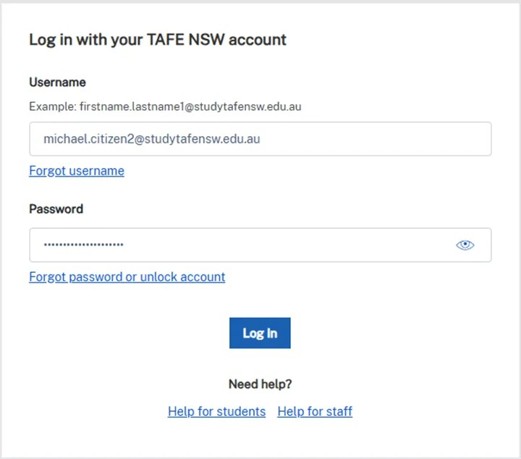
Log in using your student username and password.
Your username is your 91”Œșœ email address.
Step 2
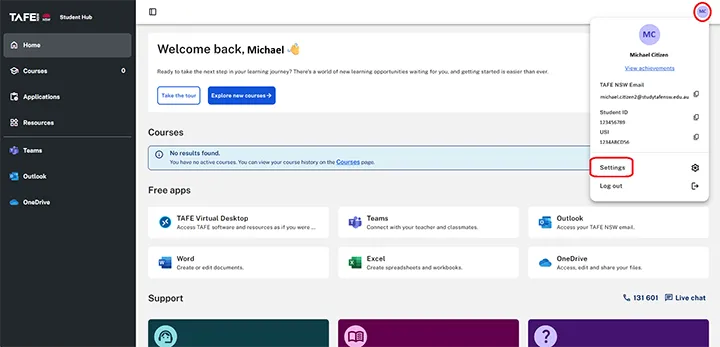
In the student hub, select your initials in the top right-hand corner of the page.
Select ‘Reset password’.
Step 3
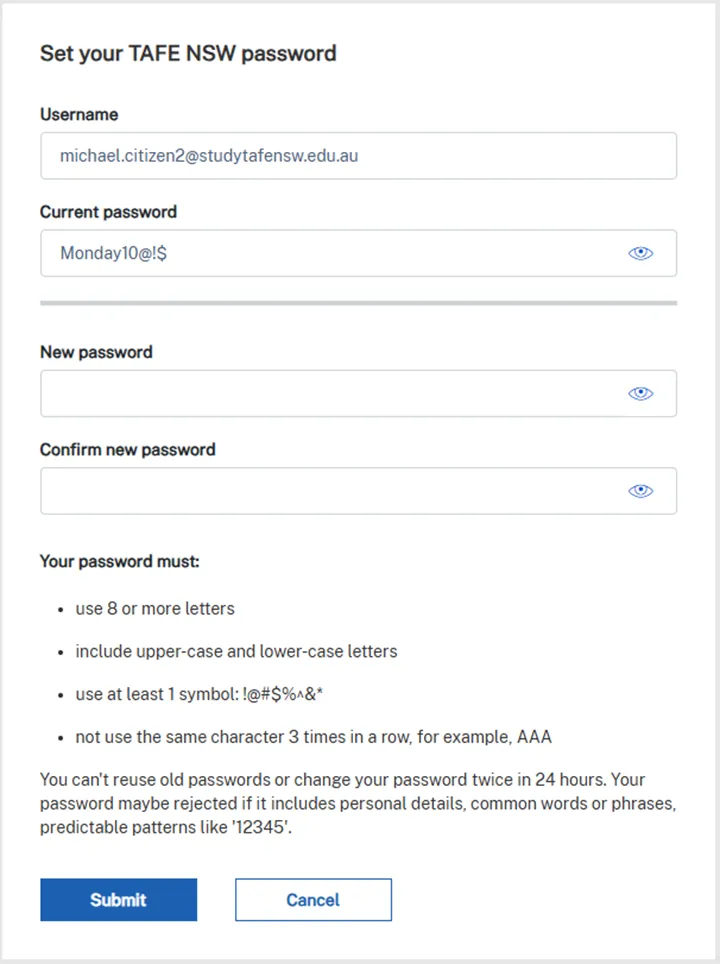
Enter your 'Username', 'Current password' and 'New password'.
Make sure your new password:
-
uses 8 or more characters
-
includes upper-case and lower-case letters
-
uses at least one symbol: !@#$%^&
-
does not use the same character 3 times in a row. For example, AAA.
Select ‘Submit’.
Step 4
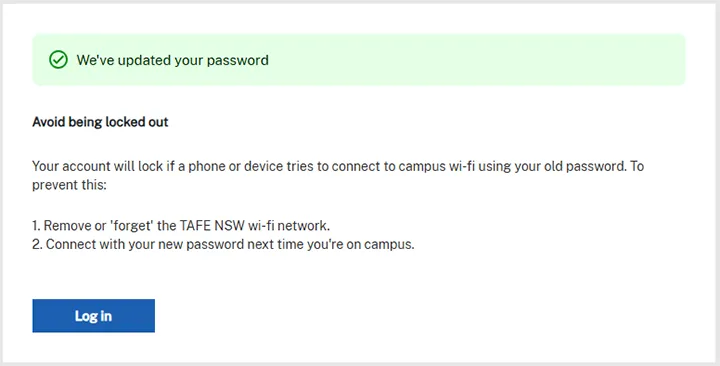
If you have successfully reset your password, you’ll see a ‘We’ve updated your password’ message.
Select ‘Continue’.
Avoid account lockouts
To avoid your account locking, go into your wi-fi settings to remove or ‘forget’ and reconnect to the 91”Œșœ wi-fi using your new password. Visit our library services website to learn how to .
This will prevent your device from trying to connect to campus wi-fi using your old password next time you’re on campus.
If your account has locked, find out how to unlock your account.
We’re here to help
For technical support check out our self-help guides or if you still need help, or call IT support on 131 601 and follow the prompts.