Skip to main content

- 91µ¼ŗ½page
- Study
- Get started
- Downloading software
- Log in to Adobe Creative Cloud
Log in to Adobe Creative Cloud apps
Follow the steps below to log in to Adobe Creative Cloud apps on your device.
If youā€™re unsure of your 91µ¼ŗ½ login details, find out how to access your account first.
Step 1
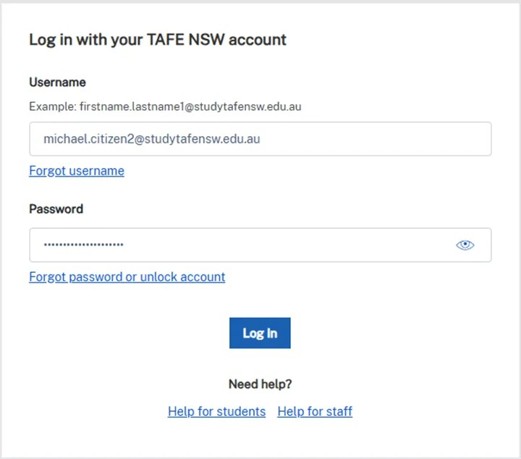
Log in to your . When the login page appears, enter your:
- 91µ¼ŗ½ username which is your 91µ¼ŗ½ student email address.
- 91µ¼ŗ½ password.
If prompted, approve the multifactor authentication (MFA) request. This will appear only if you have set up MFA on your device.
Follow our instructions if youā€™ve forgotten your username or forgotten your password.
If you're using a library computer and someone else is signed in, go to step 5.
Step 2
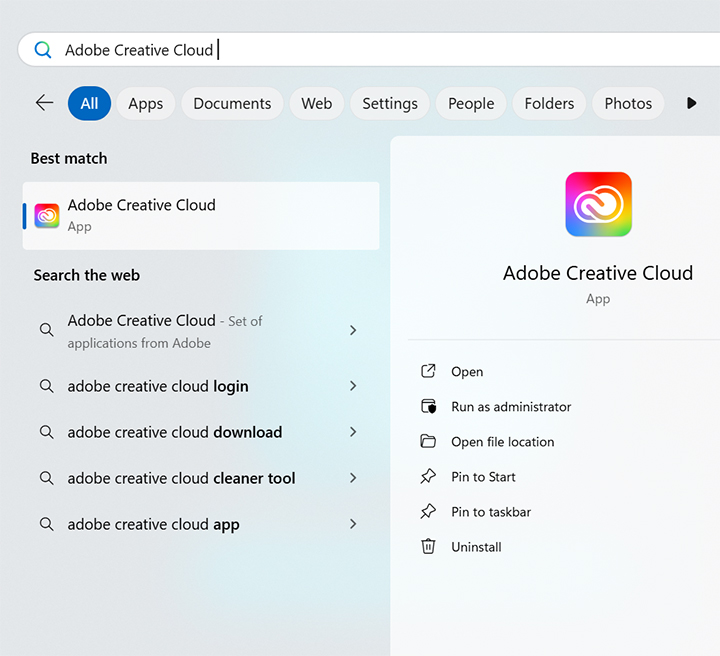
Open any Adobe Creative Cloud application, including .
For Windows users:
- Select the ā€˜Startā€™ button.
- Type the application name. For example, ā€˜Adobe Expressā€™
- Select ā€˜Enterā€™.
For macOS users:
- Open ā€˜Applicationsā€™.
- Double-click the application you want to use.
Step 3
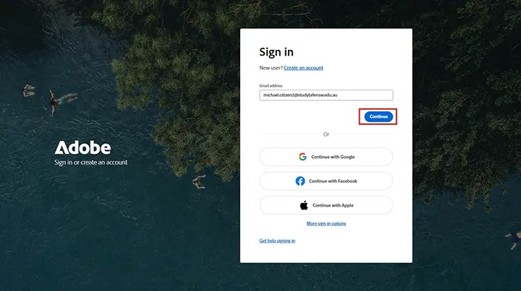
In the sign in pop-up, enter your 91µ¼ŗ½ email address and click ā€˜Continueā€™.
Step 4
You may be redirected to log in to your 91µ¼ŗ½ account. If so, log in with the same details you used in Step 1.
Once authenticated, you can use all installed Adobe Creative Cloud applications.
Step 5
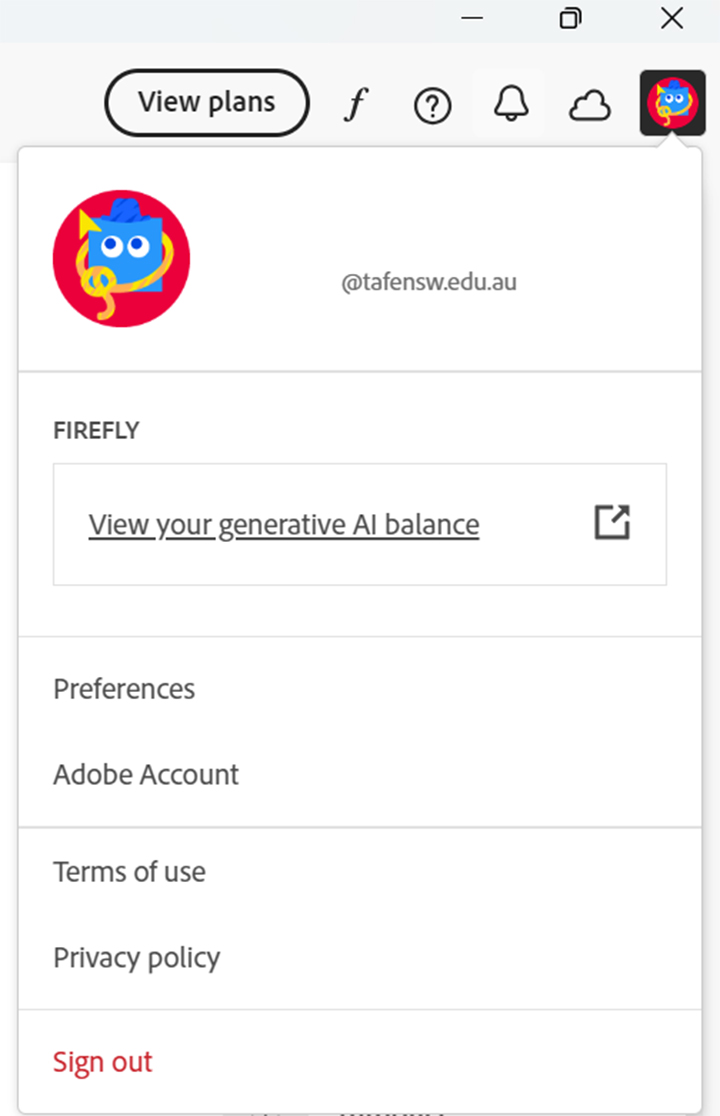
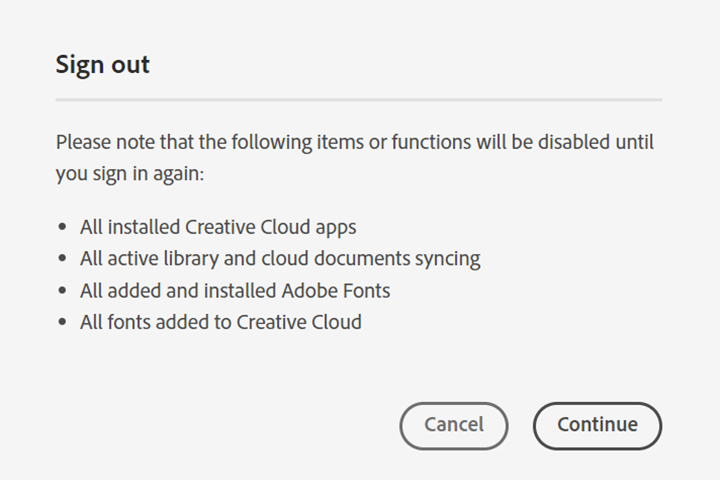
To log out of Adobe Creative Cloud, select your profile picture (the far-right icon), then ā€˜Sign Outā€™.
Step 6
In the pop-up, select ā€˜Continueā€™.
Weā€™re here to help
For technical support check out our self-help guides or if you still need help, or call IT support on 131 601 and follow the prompts.